
Two-Factor Authentication
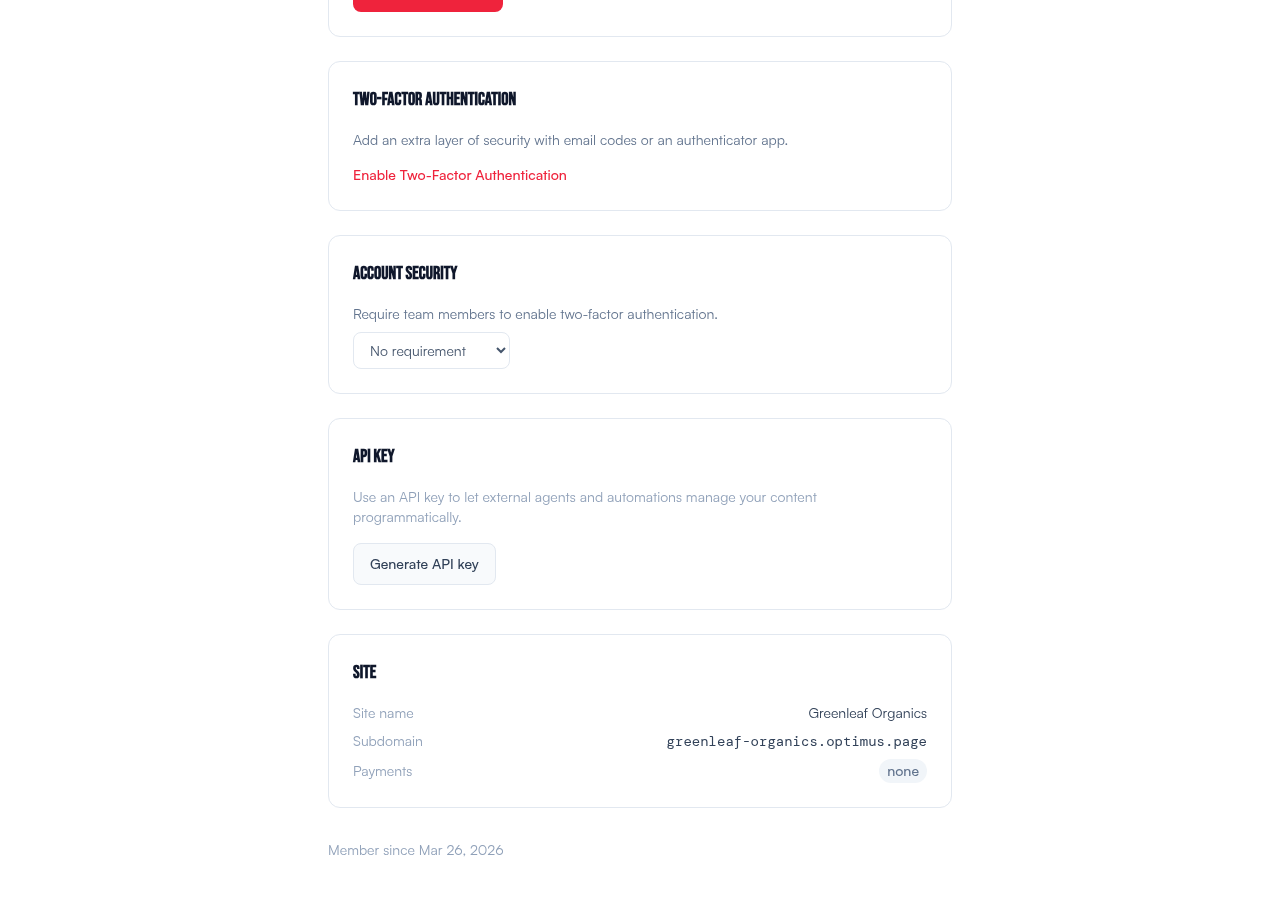
Add an extra layer of security to your account with app-based or email-based verification.
Two Methods
Blendo supports two 2FA methods. You choose which one when you enable it.
| Method | How it works | Best for |
|---|---|---|
| Email code | A 6-digit code is emailed to you each time you log in. Valid for 10 minutes. | Most users. No app install needed. |
| Authenticator app | A time-based code from Google Authenticator, Authy, or 1Password. | Higher security. Works offline. |
Enabling 2FA
- Go to Settings → Two-Factor Authentication
- Click Enable Two-Factor Authentication
- Choose your method: Email code or Authenticator app
- Confirm your password
- For authenticator: scan the QR code, then enter the 6-digit code to verify
- For email: enabled immediately after password confirmation
- Save your 8 recovery codes in a safe place
Logging In with 2FA
After entering your email and password (or signing in with Google), you'll see a verification screen:
- Email method: Check your inbox for a 6-digit code. Enter it on the verification screen. You can click "Resend code" if it doesn't arrive.
- Authenticator method: Open your authenticator app and enter the current 6-digit code.
Recovery Codes
When you enable 2FA, you receive 8 single-use recovery codes in xxxx-xxxx format. These are your backup if you lose access to your email or authenticator app.
To use a recovery code during login, click "Use a recovery code" on the verification screen and enter one of your saved codes.
Disabling 2FA
Go to Settings → Two-Factor Authentication and click Disable 2FA. You'll need to confirm your password.
Organization Enforcement
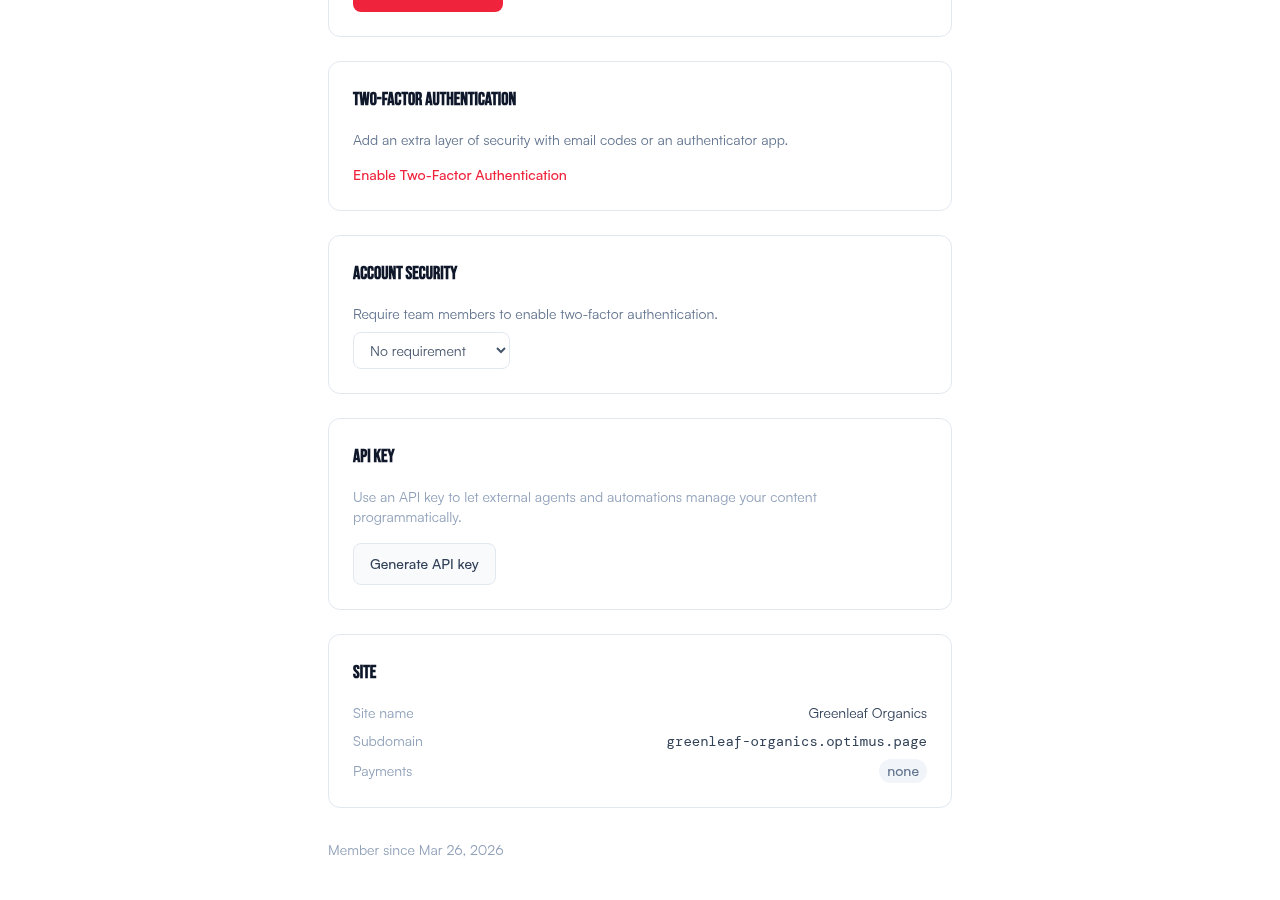
Account Owners can require 2FA for specific roles. Go to Settings → Account Security and set "Require 2FA for" to one of:
| Policy | Who must enable 2FA |
|---|---|
| No requirement | Optional for everyone |
| Owners only | Only Owner accounts |
| Admins & Owners | Owner and Admin accounts |
| All users | Every team member must enable 2FA |
Owners can also enforce a specific method (email only, authenticator only, or any). When a team member logs in without 2FA enabled and the policy requires it, they'll be redirected to a mandatory setup screen and cannot access the dashboard until they complete it.
Resetting a Team Member's 2FA
If a team member loses access to their authenticator and recovery codes, an account Owner can reset their 2FA from Settings → Team. Click Reset 2FA next to their name. They'll need to set up 2FA again on their next login (if the policy requires it).
Related
- Account Recovery — what to do when you're locked out
- Team & Roles — understanding role permissions